To enhance your Trainerize.me profile and attract more clients, you can edit various sections directly from your Trainerize web account.
In this article, we will walk through each section of your profile and how you can set it up.
How to Access Your Trainerize.me Profile
To access your Trainerize.me profile, simply click on your name and profile photo in the upper right-hand corner of your ABC Trainerize web account and select My Account. This will take you to your Profile:
Under your profile tab, various sections pertain to your Trainerize.me profile. The more you fill out, the better potential clients will get to know about you and your business!
Your Trainerize.me profile will be disabled by default when you create a new account. It only becomes live once you upload a profile picture. Until then, you can still edit and set up your profile, but it won't be visible to the public. Once your profile is live, you can follow the steps below to optimize it for clients.
1. Profile Picture
Upload a clear, high-quality headshot to represent yourself and your brand.
- Click anywhere in the circle to upload a profile photo.
- Select your saved profile picture from your computer and click Open.
- Adjust the crop window to your liking.
- Once you have adjusted the crop window, click on the check mark icon to save.
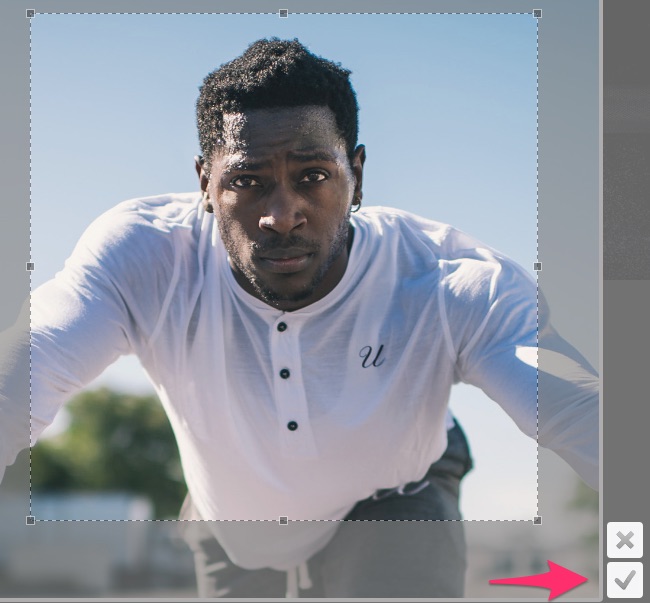
The ideal size for your profile photo should be a minimum of 800 pixels x 800 pixels. The image will resize to this square aspect ratio, but will be displayed as a circle in some design areas.
2. Profile Information
This section is where you can add your personal and professional details to introduce yourself to clients.
- To edit the text information in your profile, click on the Edit button in the far right corner, just below the banner image.
-
This will allow you to edit the following fields:
- First Name
- Last Name
- Email Address
- Phone Number
- Sex
- Timezone
- About Yourself - If this section is left blank, your Trainerize.me profile will display the message “Is this your profile? Click here to sign in and update.” Learn more here: Why Does My Trainerize.me Profile Say "Is This Your Profile?"
- Training Experience - date you started as a professional trainer
- Once you fill out the information, click Save to update the changes.
Please note: The only information from this area that will be visible on your Trainerize.me profile will be your first and last name, About Yourself section, and training years. No direct contact information is displayed. If a potential client wishes to contact you, all messaging is done through the ABC Trainerize app. No contact information is made public.
3. Certifications
Add your qualifications, certifications, and professional achievements. This helps build trust and credibility with potential clients browsing your profile. These will appear on your Trainerize.me profile.
- Select the Edit button on the right to add your certifications.
- Start typing the certification name in the text field (e.g., "ACE", "NASM") and the system will populate the certifications associated with the governing body.
- Select the certification from the dropdown and click Add.
- If you do not see your certification populate, you can manually add a certification by simply typing the name.
- When you have completed adding your certifications, click Done to save changes.

4. Services Offered
Select the services you provide (e.g., personal training, nutrition coaching, online coaching). These will appear on your Trainerize.me profile.
- Click on the Edit button on the right to add your services and select the services that you offer.
- Only the first 2-3 services selected will display on your profile, with a See all button showing the rest. Be strategic about which services you highlight.
- Services are displayed in the order they exist in the app. For example, if you select "Private Personal Training", it will always appear first.
- When complete, click Done to save changes.
5. Why Train With Me Video
To learn how to upload a Why Train With Me Video, follow this link: How to Create A "Why Train With Me" Video.
6. Photo Feed
This is an area where you can upload photos of clients working out, pictures of you delivering training, or any other type of image you would like to share. These images will be displayed on your Trainerize.me profile.
- Simply drag and drop the images to the display area or click Select a File to upload an image from your computer.
How Your Trainerize.me Profile URL Is Created
Your Trainerize.me profile URL is connected to your account's unique ABC Trainerize web address.
If you change your unique web address, the corresponding portion of your Trainerize.me profile URL will also update automatically.
For example:
-
Original web address:
[yourbusinessname].trainerize.com -
Original Trainerize.me profile:
trainerize.me/profile/[yourbusinessname]/[yourname]/
After changing the web address:
-
Updated web address:
[yournewbusinessname].trainerize.com -
Updated Trainerize.me profile:
trainerize.me/profile/[yournewbusinessname]/[yourname]/


